
Edit Route on Shipments Grids, filter XA shipments and view special instructions
Version 1.2.3 June 8, 2019.
This release focused on shipment priorities and making them easily identifiable. We also have minor enhancements to improve your productivity.
Edit Route on Shipments Grid on the Route Planning view:
Move shipments to different routes using the Shipments grid on the Route Planning view.
To move a single shipment, double click on the route cell to edit.

To move multiple shipments to a different route, select the shipments on the grid. Click on the Edit
icon on the grid header and select the desired route destination.
In addition, you can edit other fields like PSE, IB ETA, Weight, Delivery Window, LG and Prep Time.
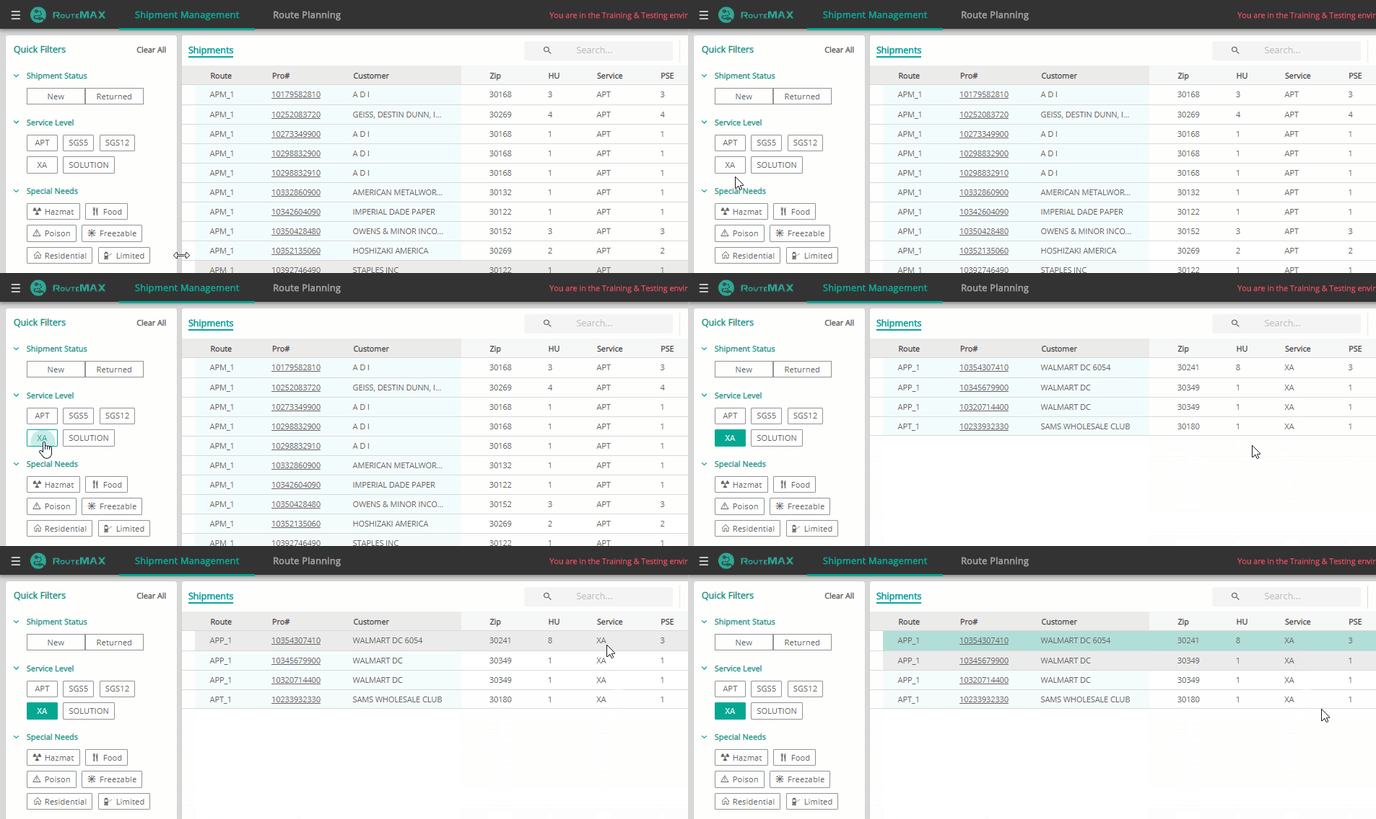
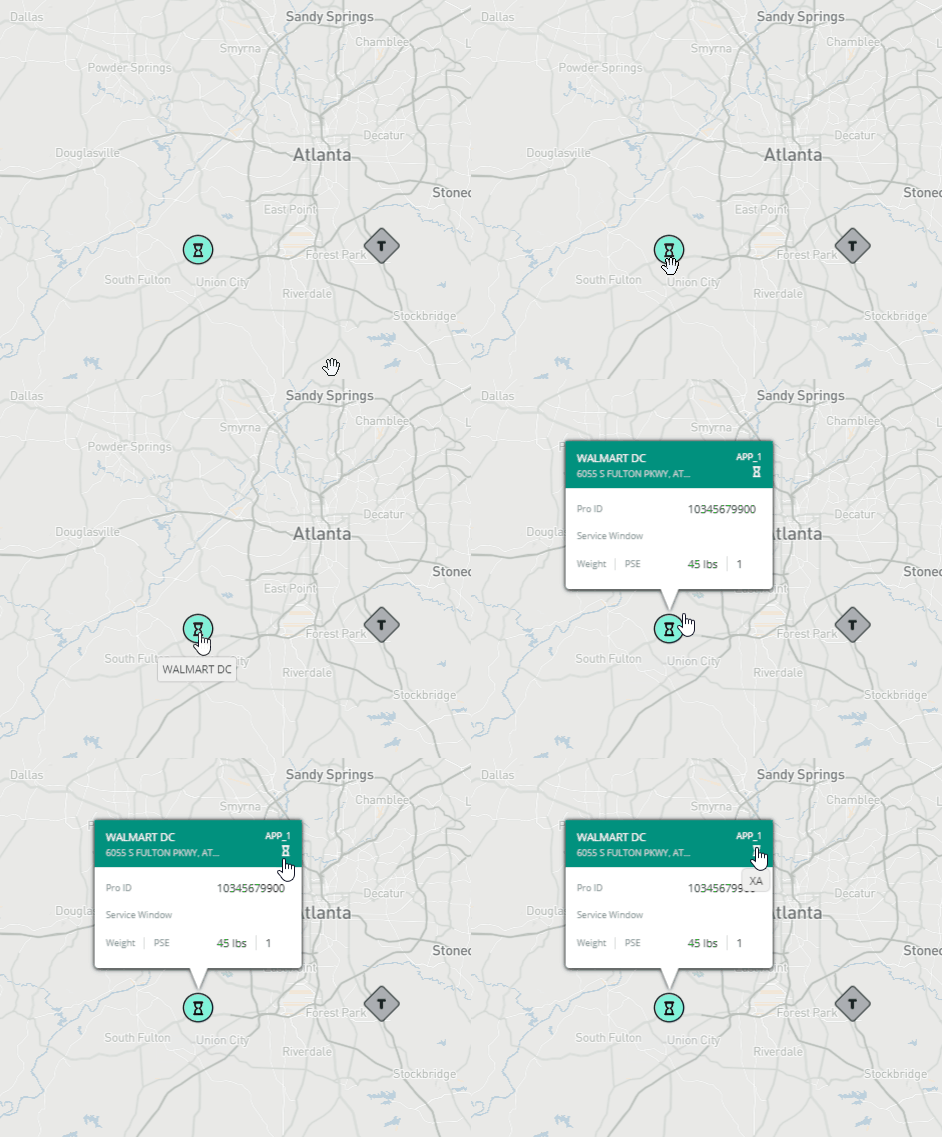
XA and Solution shipments:
Showing Extreme Assurance (XA) and SOLUTION Shipments on the Map and the Grid.
You can also filter shipments based on these categories.
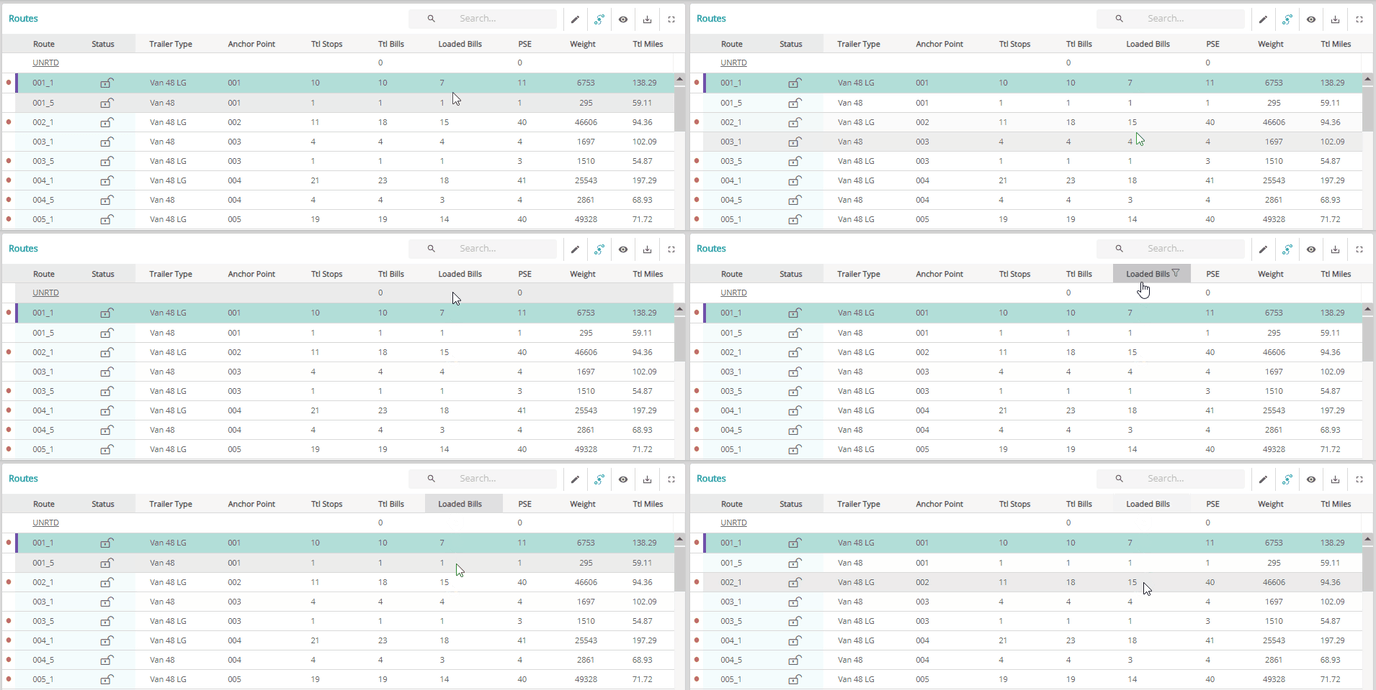
Loaded Bills on the Routes grid:
Showing the number of bills loaded on to the city trailer based on the Shipment status.
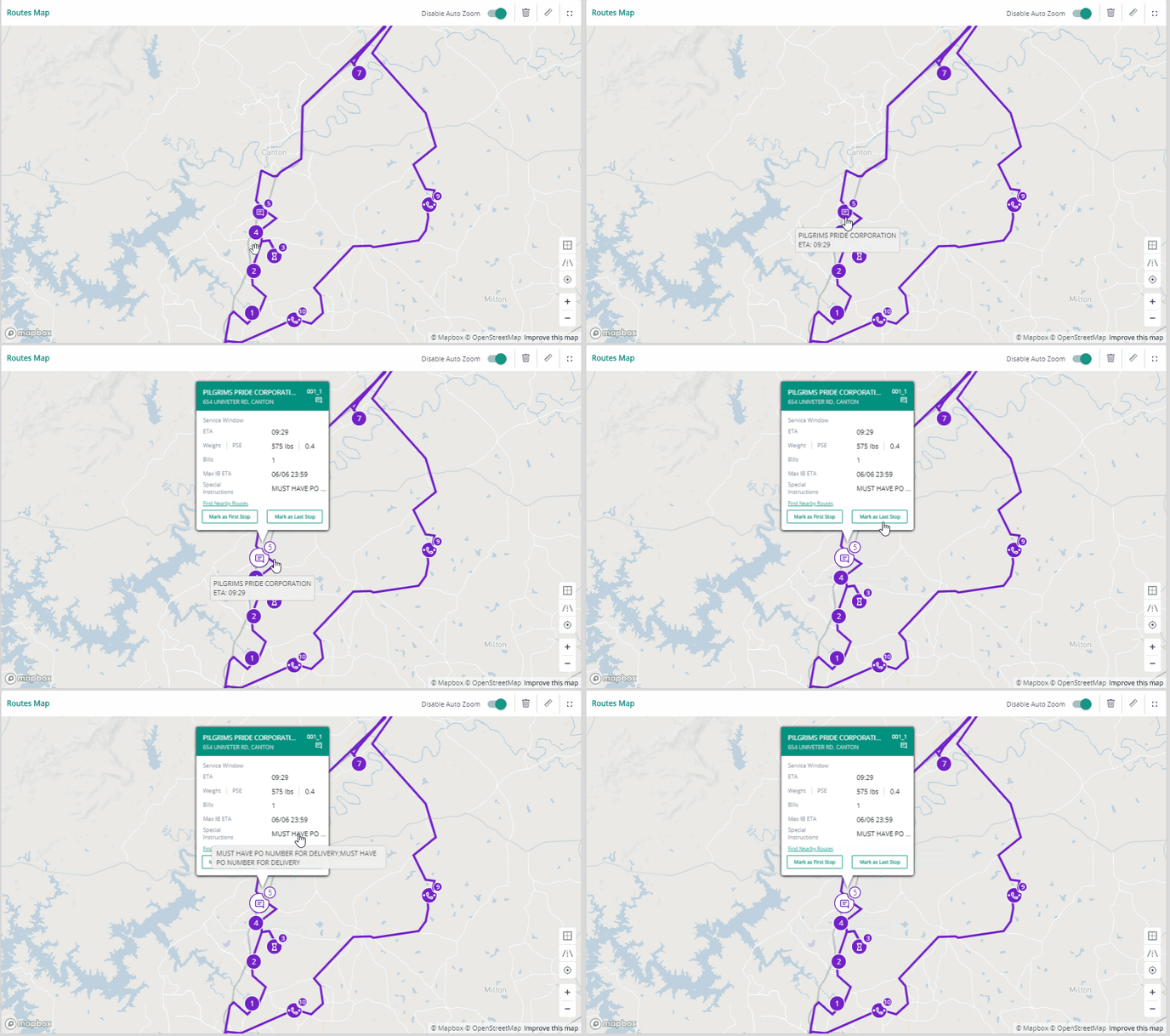
Special Instructions
Added special instruction icon on the map pop up for the customers having special instruction.
Hovering over the special instruction icon will show you the message from the customer.
Special Instruction column is also available on the Stops grid in the Route Planning view.
Improved Visibility on the Active Terminal Code
Terminal Code directly visible on the header. Clicking on the dropdown will help you in switching
terminals.

Better search for Pro ID column:
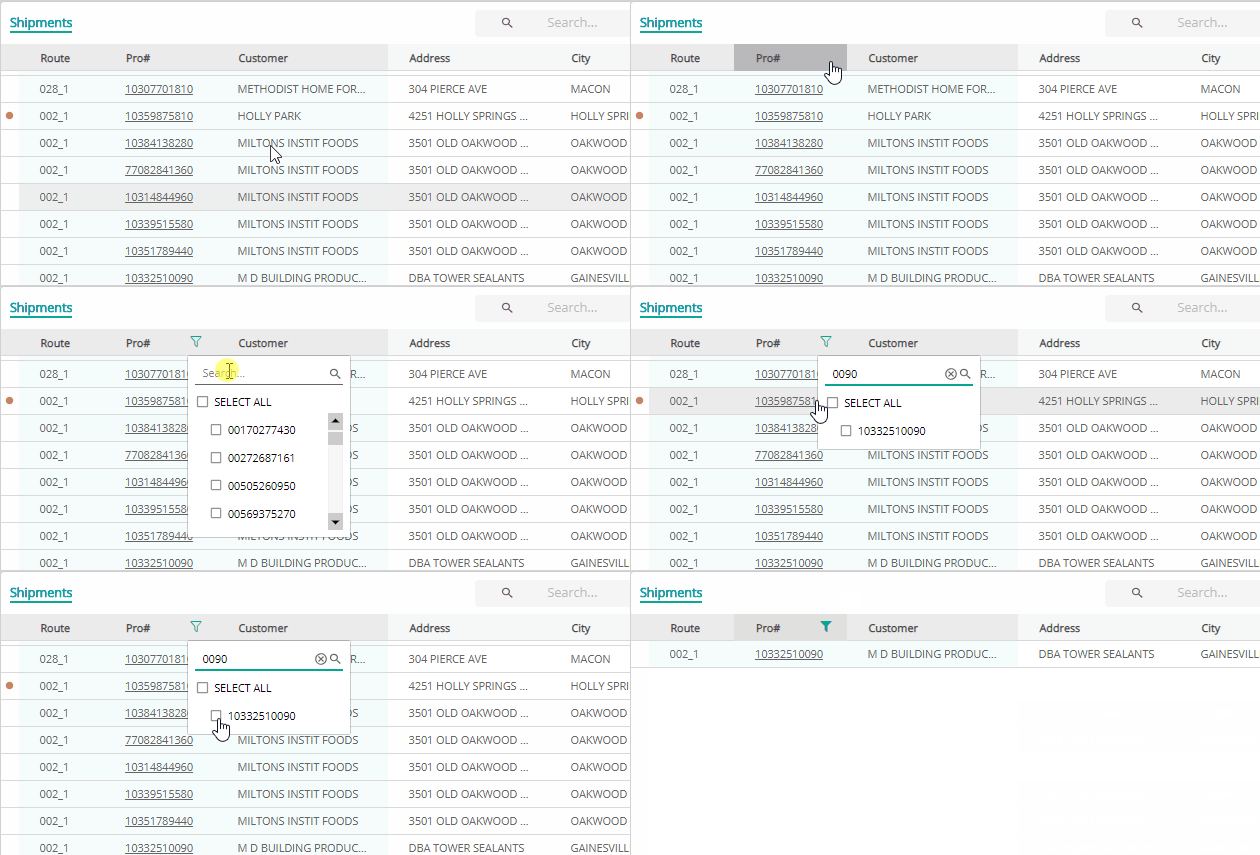
Improved searchability of Pro ID column filter by converting it as text filter.
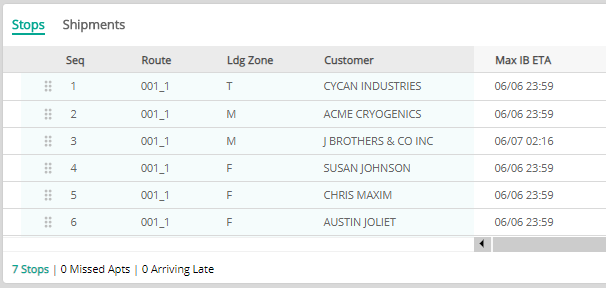
Added Max IB ETA value to Stops pop up for planning better using the maps.